


SuperProNet Firewall Configuration
There are two sets of instructions depending on whether you are using the built-in Windows firewall or a third-party firewall.
Using Windows Firewall
1. Open the Control Panel and double-click on the Windows Firewall icon.
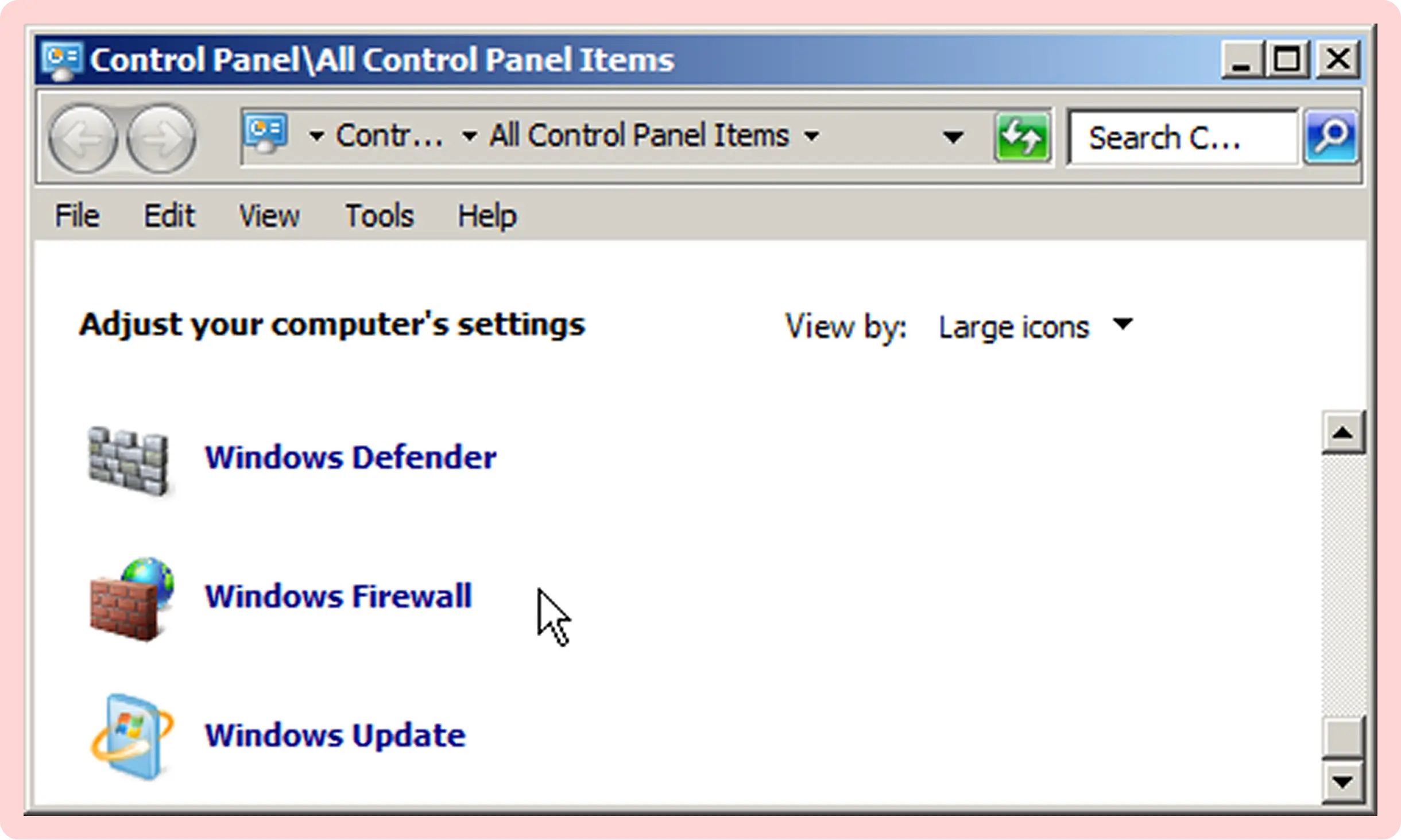
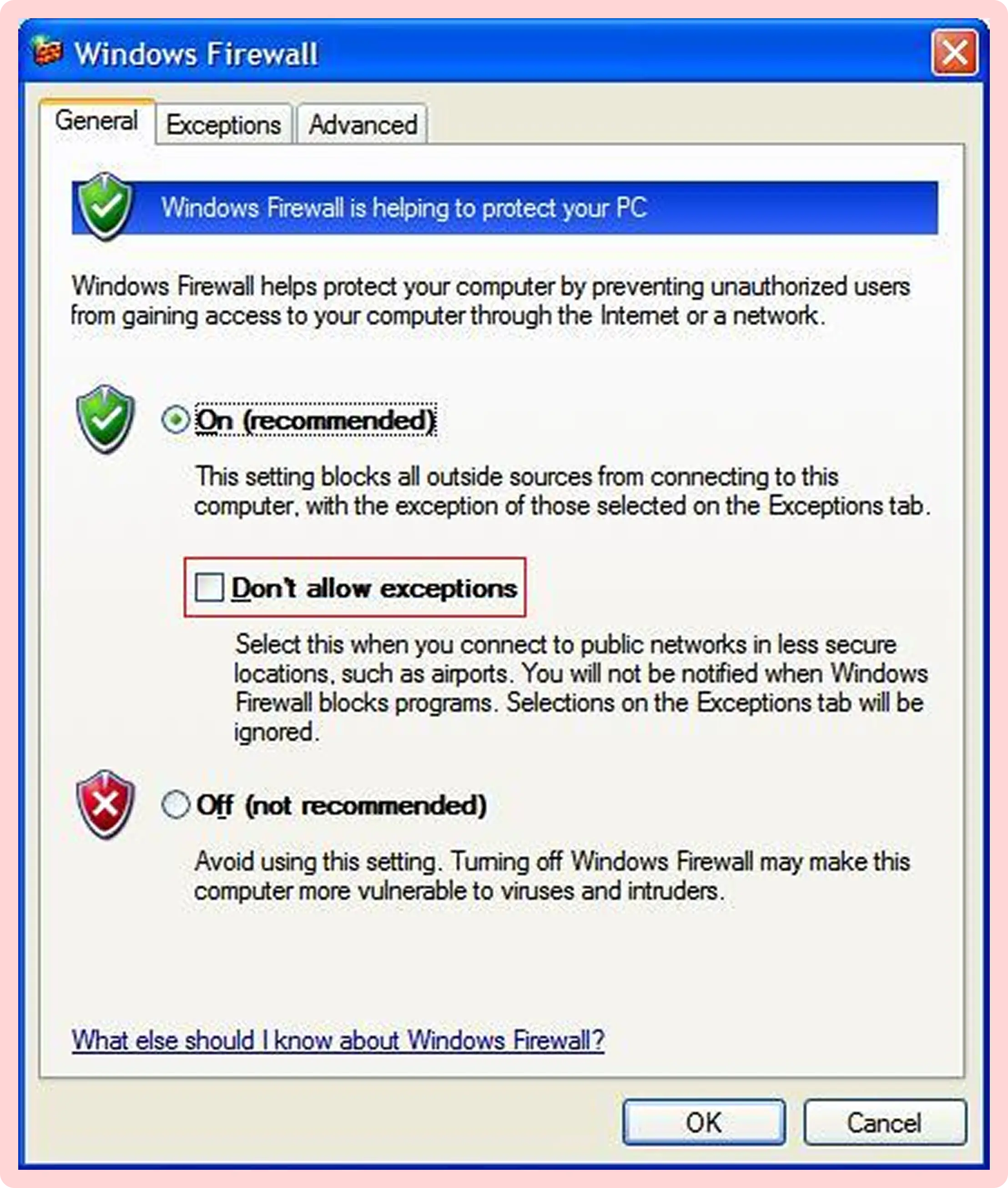
2. After opening the Windows Firewall window, select the General tab.
3. Check to make sure that the Don't allow exceptions checkbox is unchecked, just like the image below.
4. Select the Exceptions tab.
5. Check to make sure that the checkbox next to Sentinel Protection Server is checked, just like the image below.
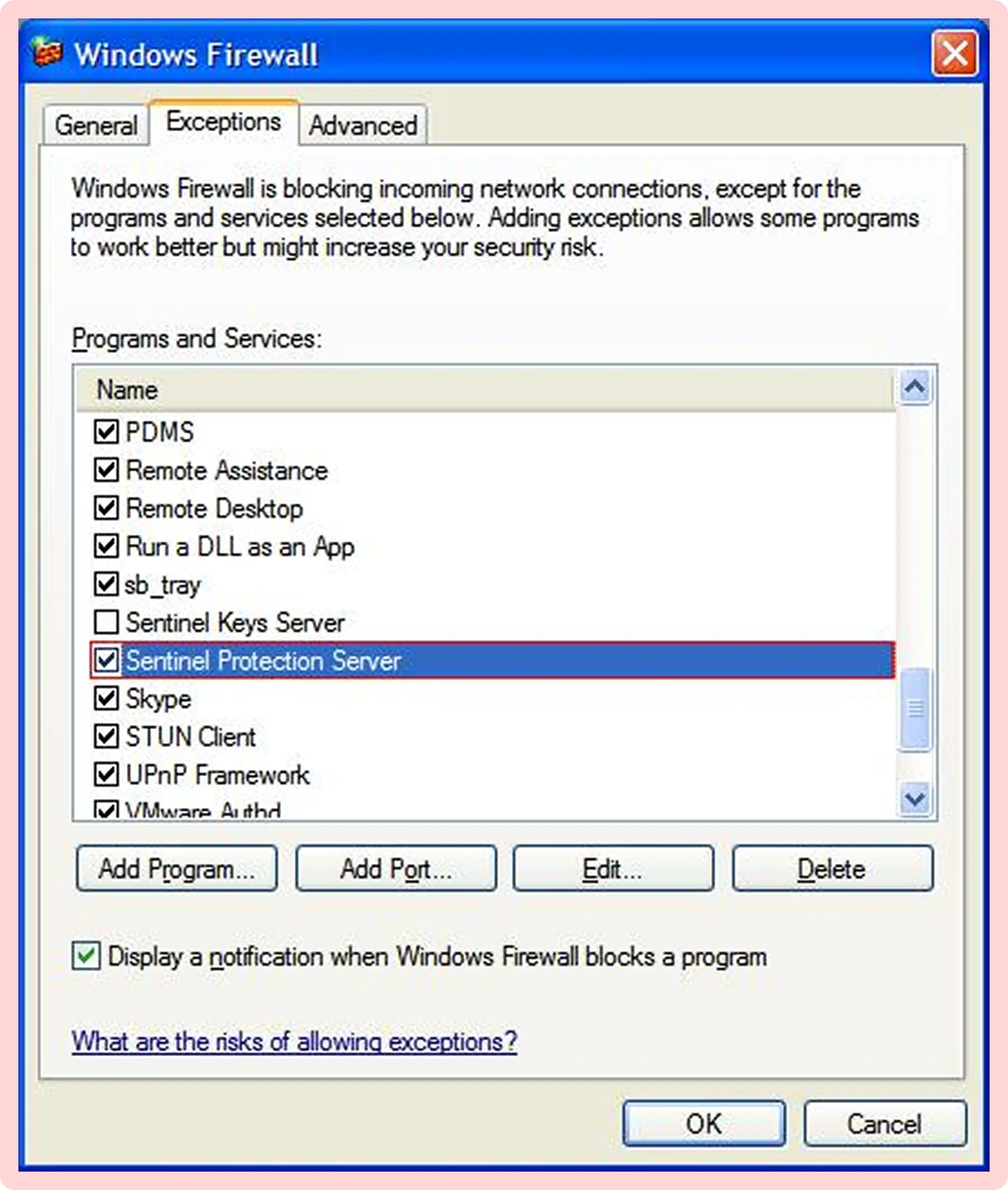
If Sentinel Protection Server is not on the list, follow these steps:
Click Add Program. The Add a Program window will appear.
Click Browse and navigate to C:\Program Files\Common Files\SafeNet Sentinel\Sentinel Protection Server\WinNT\spnsrvnt.exe. Another window should appear.
Once you have selected spnsrvnt.exe click Open.
Finally click OK in the Add a Program window.
Using Third-Party Firewall
Due to the fact that there are so many third-party firewall and network security programs, we can not possibly list specific instructions for each.
However in any third-party firewall you have the option of allowing exceptions to security rules.
You must allow all In-Bound and Out-Bound network traffic on UDP Port 6001.