


License Manager Environment Variable Help For Windows
If you get: "Error, SSTLM Environment variable not set" message, take these steps detailed below.
SST License Manager Variable Help
Open Control Panel test
Open the Control Panel and double-click on the System and Security icon.
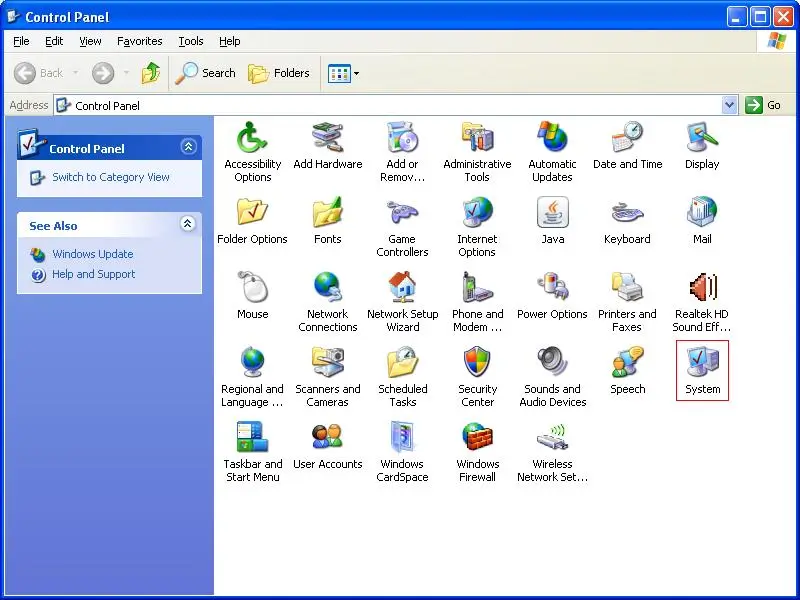
Click on System
After opening the System and Security window, click on System.
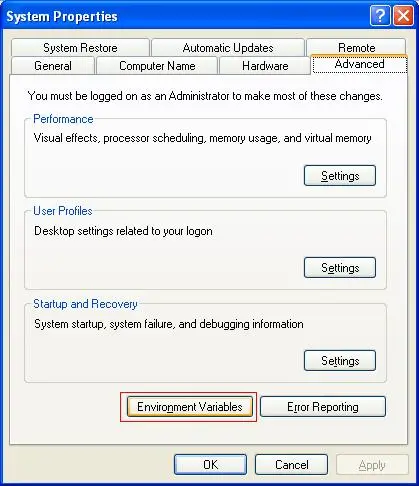
Click on Advanced system settings
After opening the System window, click on Advanced system settings.
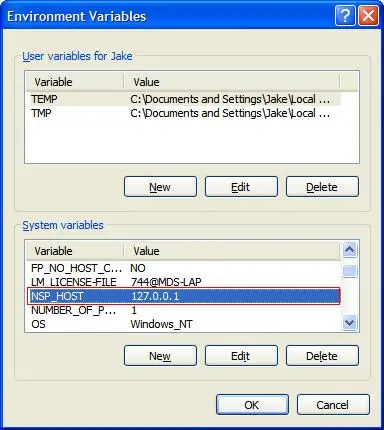
Go to Environment Variables
After opening the Advanced system settings window, select the Advanced tab.
Next click on the Environment Variables button.
Add SSTLM Variable
After opening the Environment Variables window, add a new System Variable (not a User Variable).
Enter "SSTLM" in the Variable Name field.
Enter the IP Number/Hostname of the computer on which SSTLM resides on in the Value field.
Most often SSTLM will reside on the same computer as the SSTLM protected software. In this case, for your IP Number/Hostname, you need to use:
A static/dynamic IP Number (or computer name) of the computer where SSTLM is loaded - Check with your Network Administrator test
NOTE: For network licenses with multiple users/client machines.
In order for Client machines to access the license hosted by SST License Manager (installed on server machine/computer) please use the server machine/computer IP Address/NAME in the SSTLM Environment Variable Value field instead of the client machine IP/NAME.
Remote Desktop via Citrix/Across Routers
If possible, install and run CAEPIPE/SSTLM software using the console as if you were "local." When defining the SSTLM environment variable, you can reference the hostname of any other computer on your subnet. If across subnets, open port 12000 on your router/firewall.