

LM Driven Software Troubleshooting
Here are common issues and how to resolve them when using SST License Manager (SSTLM) and related client software:
.NET Framework Requirements
SST software requires .NET Framework 3.5
Solution
SST software protected by SST License Manager requires .NET Framework 3.5. For Windows 7 and Windows 8, .NET Framework 3.5 is already installed by default. For Windows 10 and Windows Server 2012, the .NET Framework 3.5 needs to be enabled using the option "Turn Microsoft features on or off" in Control Panel.
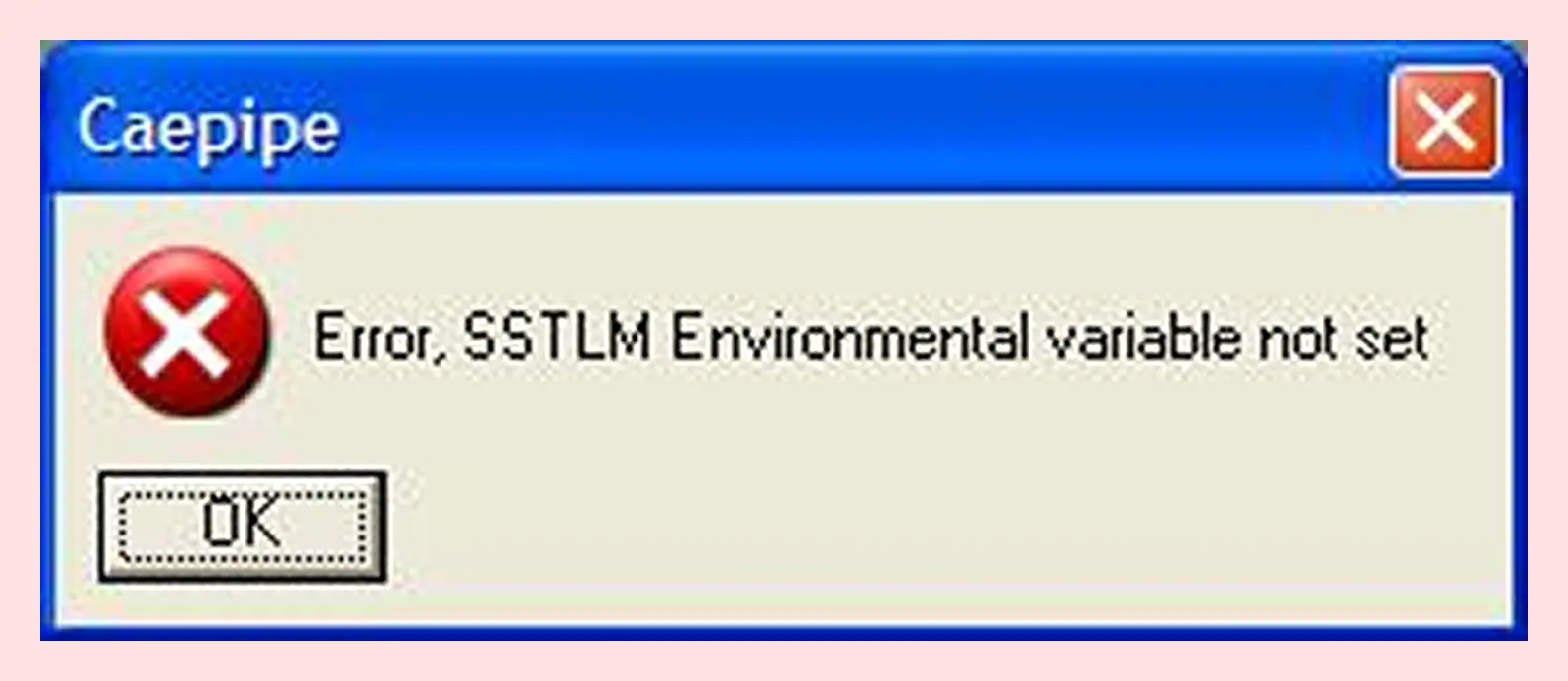
SSTLM Environmental Variable Not Set
Error: "SSTLM Environmental variable not set"
Solution
If you get a "Error, SSTLM Environmental variable not set" message, please consult the SST License Manager Environmental Variable Help for further instruction.
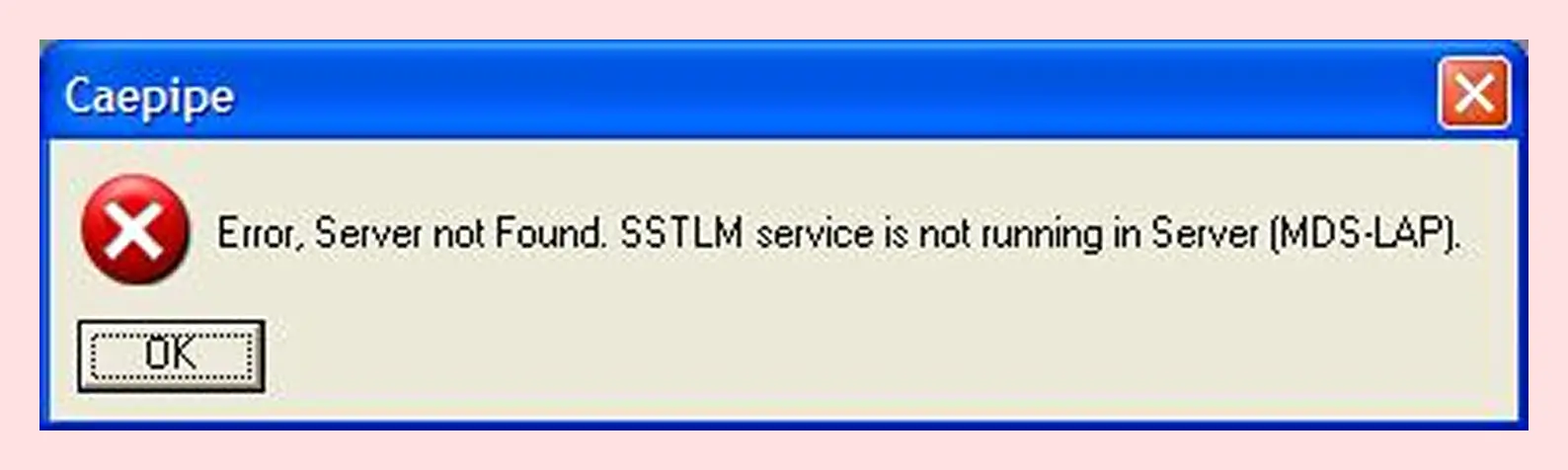
Server Not Found. SSTLM Service...
Error: "Server not Found. SSTLM service is not running in Server\Licensing"
Solution
If you get a "Error, Server not Found. SSTLM service is not running in Server" message, please consult the SST License Manager Firewall Help for further instruction.
Expired Licenses
My license has expired and I cannot activate the software
Solution
To reactivate an expired license, please send an email to [email protected]. Please include your name, company, email and telephone number.
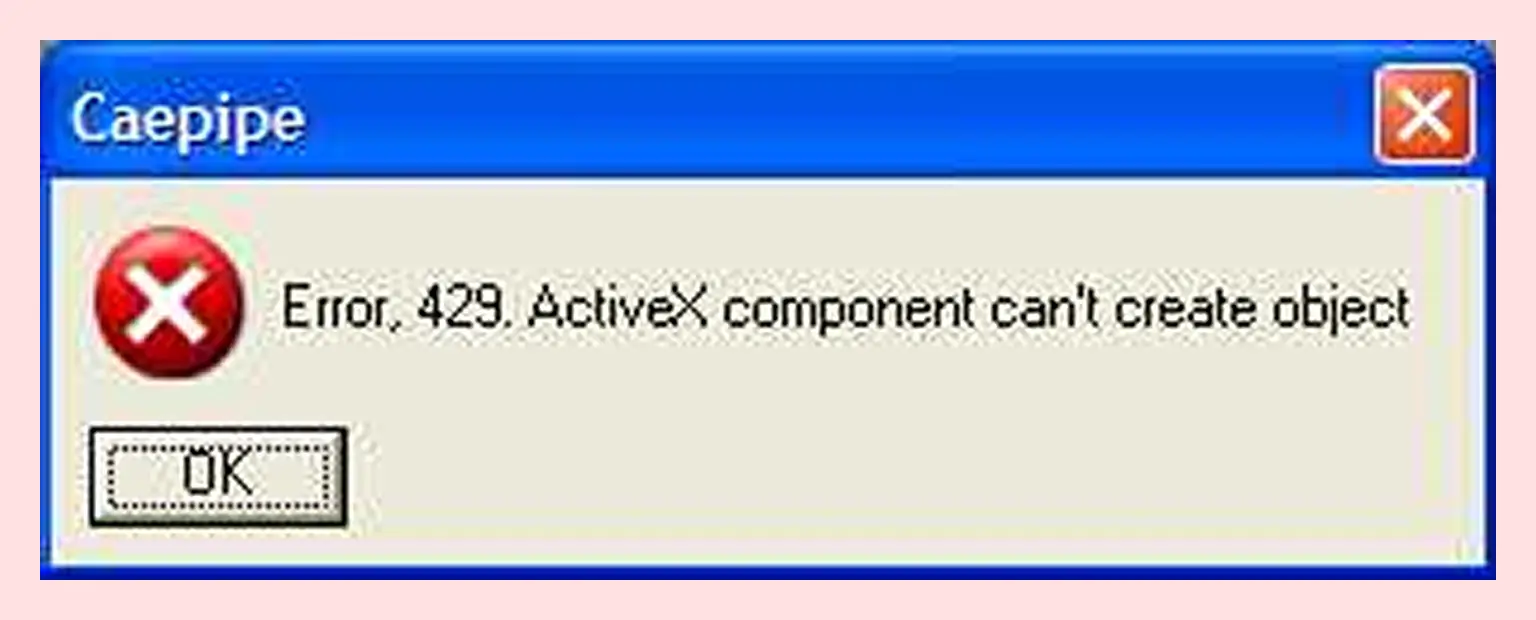
Error 429 - ActiveX Component
Error 429: "ActiveX component can't create object"
Solution
If you get a "Error, 429. ActiveX component can't create object" message, reinstall SSTLM. You can download the installation file here.
Note: Reinstalling SSTLM will NOT remove existing activation keys.