

CAEPIPE Troubleshooting
Quick solutions for common CAEPIPE errors including missing DLL files, USB key issues, serial number mismatches, and license problems.
Win 9x/Me Users
Download Missing DLL files (0.35MB) (exe) OR Missing DLL files (zip) (0.35MB) only if you get an "Unable to Locate DLL" problem when you run CAEPIPE.
When prompted to save the file, save it to a temporary folder. Double click on "w9xdll.exe". Type the full path to where CAEPIPE program files are located. When finished, REBOOT YOUR COMPUTER before executing CAEPIPE.EXE.
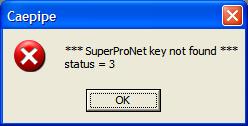
USB ***SuperProNet Key Not Found*** Status = 3 Error
If you get a "USB *** SuperProNet key not found *** status = 3" message:
Make sure that the USB hardware key, when connected to the USB port of the device, has a steady green LED light. If the light does not come on, it may be indicative of a faulty USB hardware key.
Make sure the USB hardware key is connected and the USB hardware key driver is installed on the device.
If the key is connected and the driver is installed, try connecting the key to a different USB port and restarting the device.
Further troubleshooting techniques are covered on NSP_HOST Configuration, SuperProNet Firewall Configuration, and SuperProNet Service Configuration.
Please verify that each setting described in the links above is correctly configured on the device.
Wrong Serial Number
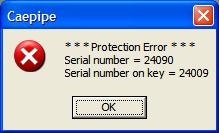
If you get a "*** Protection Error *** Serial..." message:
If you have multiple stand alone keys in your possession, the CD used in installation must have the same serial number as the key.
If you have multiple network keys in your possession and multiple servers, the NSP_HOST must point to the server with the same serial number as the CD used in installation.
Or, we could have sent you a version file mismatched to the hardware key. Contact us for a solution.
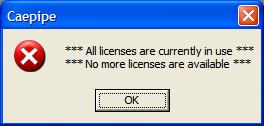
All Licenses Are Currently In Use
If you get a "*** All licenses are currently in use ***" message:
- All licenses available are being used.
- In rare instances, if a computer using a network license crashes or exits CAEPIPE inappropriately, a network license might not have been released. Rebooting the server or restarting the Sentinel Protection Server service will resolve the problem.
SafeNet also makes available an online hardware key monitoring tool that shows how many licenses are in use and which IP addresses they are currently assigned to. Instructions can be found on Page 5 of the Safenet document.